 Paintlustrator
Paintlustrator guide · SVG export
Create an SVG on iPad. Export it for free.
Paintlustrator lets you draw on iPad and save your artwork as an SVG without a subscription or export purchase.
This workflow creates a new drawing. If you already have an SVG file, read about creating versus editing SVGs first.
1. Start your drawing
Open a blank canvas and draw with Apple Pencil or touch. A simple flower or a few shapes make a useful first project. Use layers to keep parts of your artwork separate while you work.
2. Save the editable project
Save your Paintlustrator project so you can reopen it and continue editing later. Keep this project as well as your exported SVG: Paintlustrator does not currently import SVG files back into the editor.
3. Open Export SVG
Use the Export SVG control in the editor. Choose Save to Files to save a copy on your iPad or in a storage location available through Files. You can also use the sharing option to send it to another app.
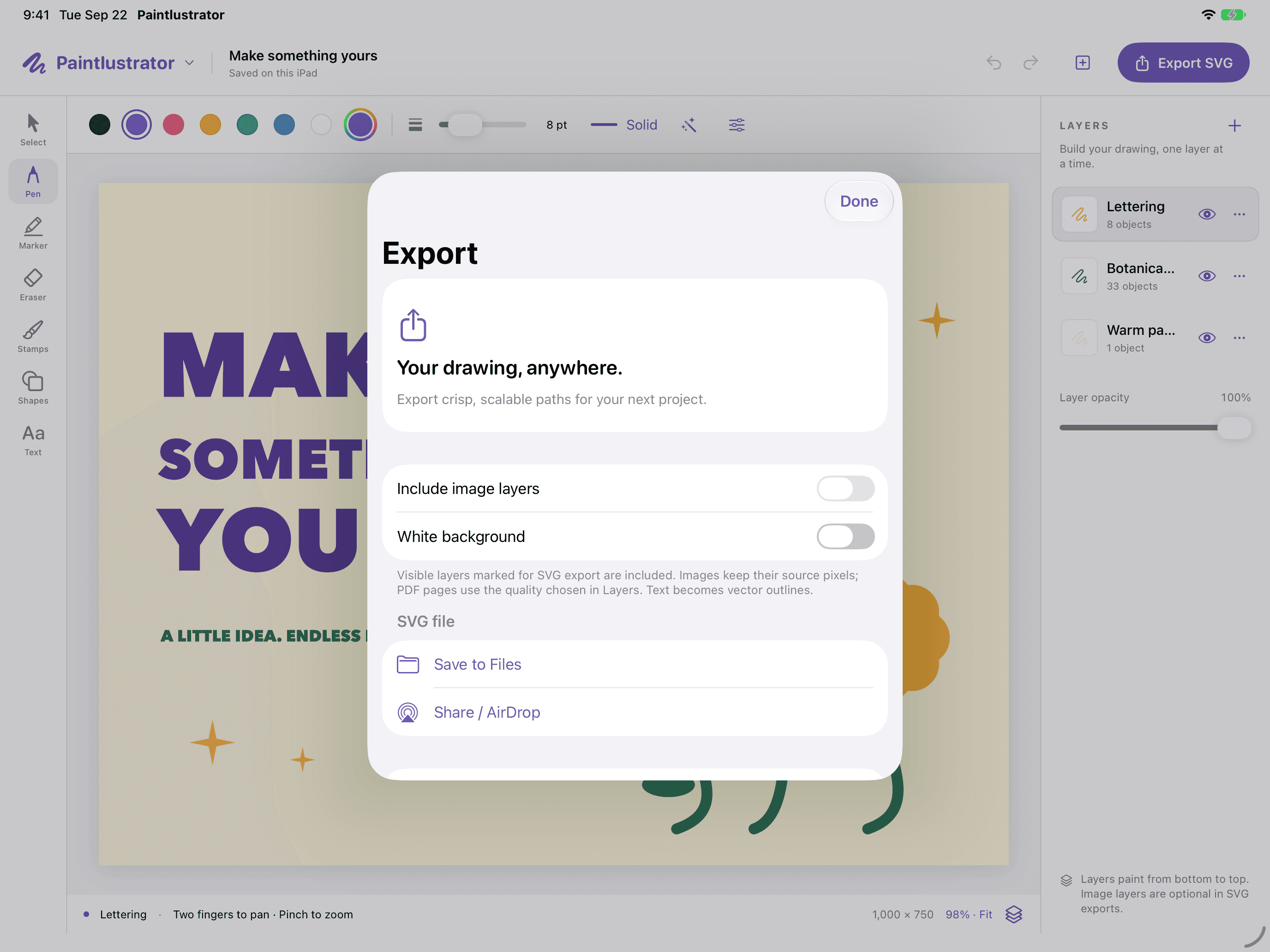
4. Check your exported artwork
Open the saved file in an SVG-compatible viewer or the app where you plan to use it. Check the appearance before sending it on. SVG viewers and editors can differ in how they display a file.
Will everything scale like a vector?
Vector drawing elements can scale without the pixelation of a fixed-resolution image. Imported photos and PDF reference pages remain raster images; exporting an SVG does not turn those images into vector paths.