 Paintlustrator
Paintlustrator guide · PDF import
Bring in a PDF.
Make it your canvas.
Use a PDF page as a reference for a new drawing on your iPad. Paintlustrator lets you select a page, choose its import quality, and draw above it on separate layers.
1. Choose your PDF
Use the app’s import control and select a PDF through Files. Choose a document you own or have permission to use, such as a sketch or layout you made yourself.
2. Select a page and quality
In the PDF import dialog, choose the page you want to work with and its import quality. If a large page is difficult to import, try a lower quality setting.
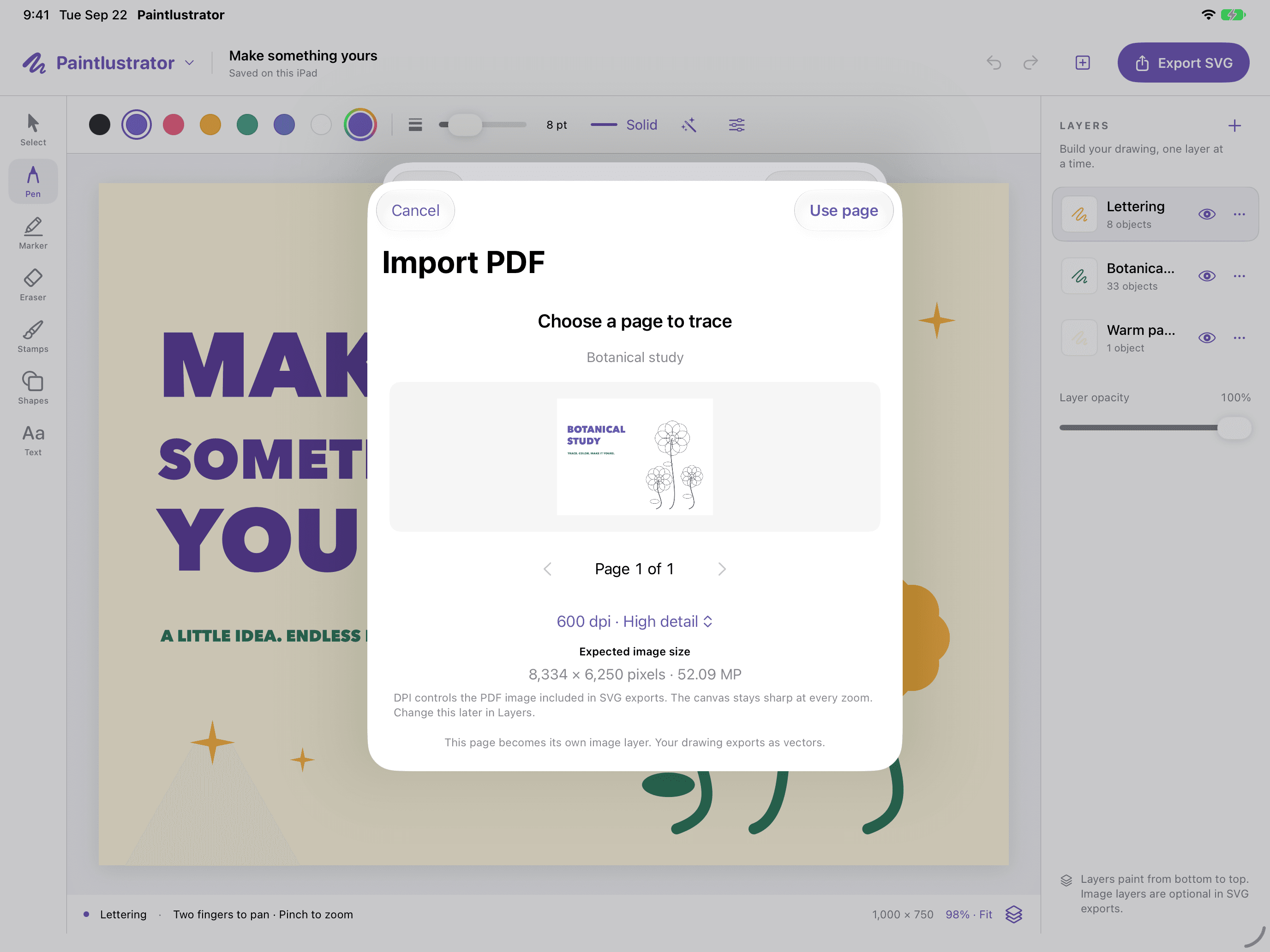
3. Draw on a separate layer
Add a drawing layer above the imported reference. Sketch or trace with Apple Pencil or touch. Keeping the reference and your new drawing separate makes it easier to revise your work.
4. Save your project and export your artwork
Save the editable project so you can return to its layers. When you are ready to share an SVG, open Export SVG and choose the file-saving or sharing option. Follow the SVG export guide for the full workflow.
Does PDF import convert a PDF into vectors?
No. Paintlustrator imports the selected page as a raster reference image. Text and shapes in the original PDF do not become individually editable vector objects. You can draw new artwork above the reference, but this is not automatic PDF-to-SVG vector conversion.