 Paintlustrator
Paintlustrator guide · Choose your workflow
Create an SVG, or edit one? Here’s the difference.
When you search for an SVG editor for iPad, you might want to draw something new or change an SVG you already have. Those workflows need different capabilities.
Creating new SVG artwork
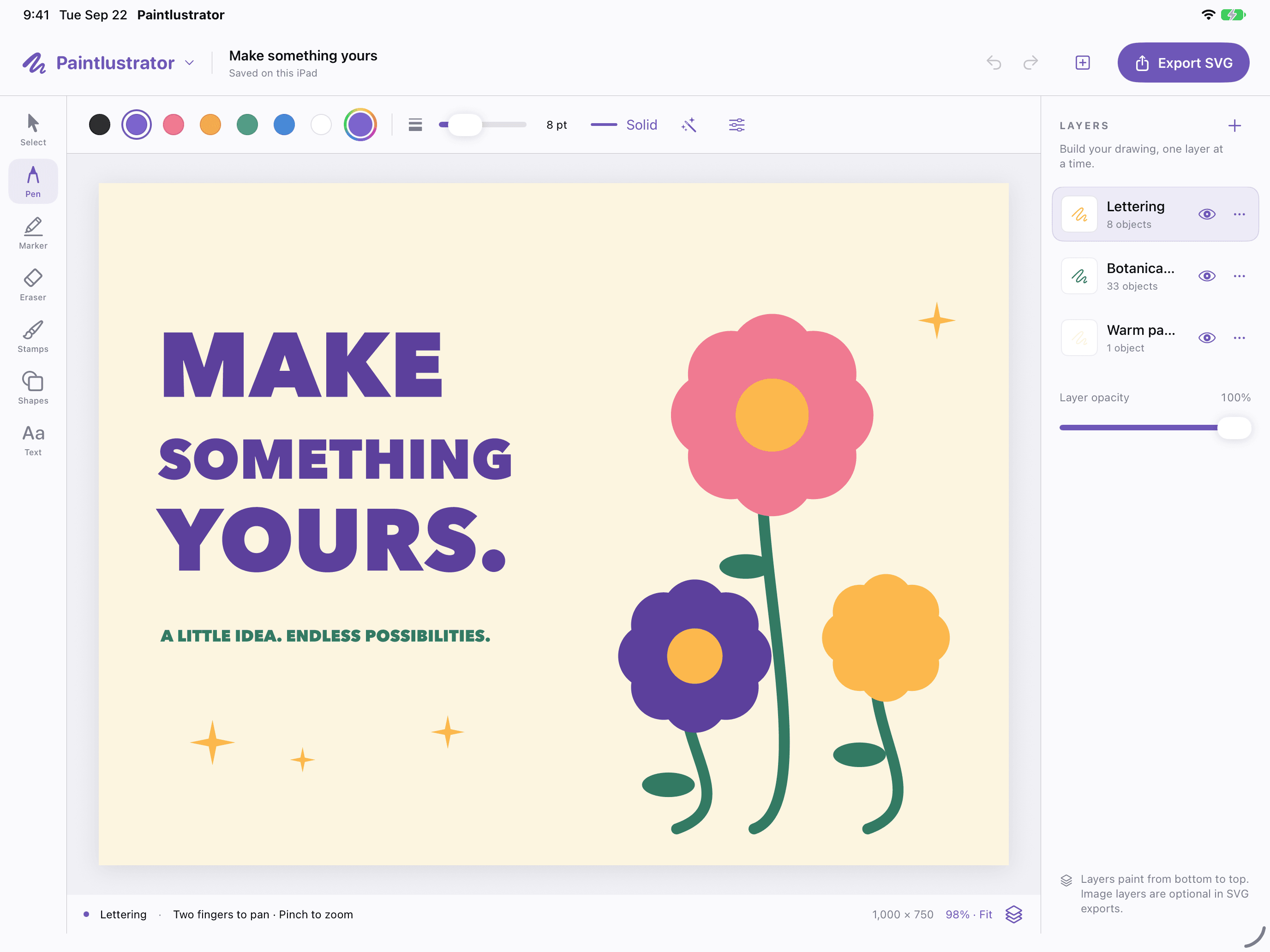
You start with a canvas, make a drawing, and export it as an SVG file. This is the workflow Paintlustrator supports. You can draw with Apple Pencil or touch, organize your drawing with layers, and export the result for free.
Editing an existing SVG
This starts with an SVG file from another project or application. An editor must be able to import that SVG and expose its objects for editing. Paintlustrator does not currently support importing existing SVG files.
If your task is to open an existing SVG and change its paths, text, or objects, you need an app that explicitly supports SVG import and the edits you want to make.
Drawing over a PDF or photo
Paintlustrator can import PDF pages and photos as raster references. You can draw new artwork above them. This is useful for tracing your own sketch, but it does not automatically convert the source image into vector paths.
Which file should you keep?
- Your Paintlustrator project: keep this to reopen and edit your work in Paintlustrator.
- Your exported SVG: keep this to share or use in SVG-compatible software.
- Your original PDF or photo: keep this if you may need the source reference again.
Learn how to create and export an SVG for free →